SQL Developer on Windows
Prerequisites
SQL Developer Configuration
Launch Application
Open SQL Developer and click the green + button in the Connections tab.
Configure Connection
Fill in the configuration details:
| Field | Value |
|---|---|
| Name | db-oracle |
| Username | sXXXXXX (your student ID) |
| Password | oracle12 |
| Connection Type | Basic |
| Hostname | db-oracle.pjwstk.edu.pl |
| Port | 1521 |
Important: Service Name
Select Service Name instead of SID and enter:
baza.pjwstk.edu.pl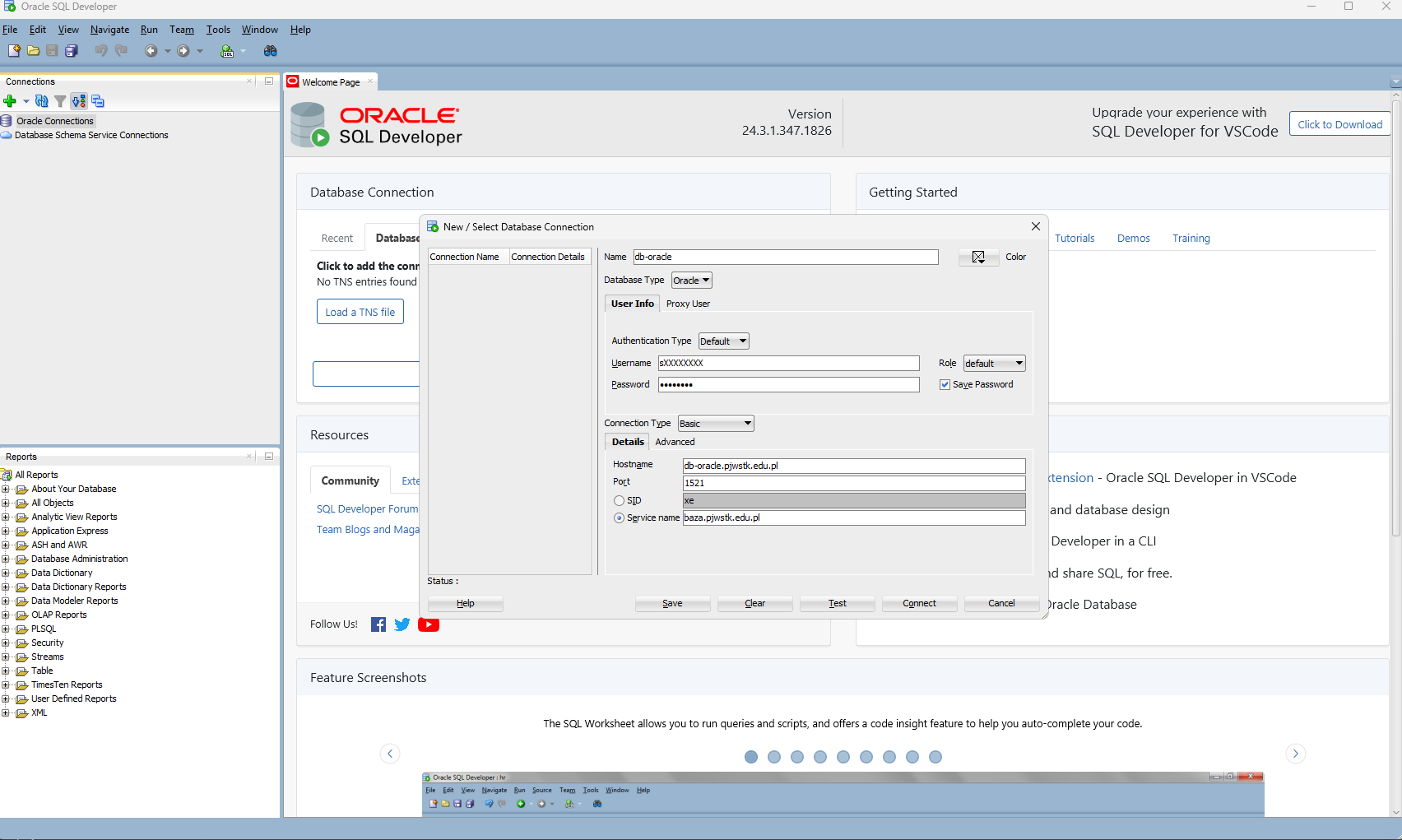
Test and Connect
- Click Test. You should see a Success message.
- Click Connect to save and open the connection.
Summary
After completing these steps, you can browse tables, views, and manage your Oracle database directly from SQL Developer.