Connecting to Oracle Database in DataGrip on macOS
Prerequisites
To connect to an Oracle database in DataGrip, you need:
- DataGrip installed (preferably the latest version) - download link
- macOS operating system
License Activation
If you are on the PJATK network (lab computer or Wi-Fi), use the License Server.
If you are outside the network (including VPN), use your PJATK account with an educational license. obtain one at JetBrains Education.
Step by Step Guide
Launch DataGrip
Open DataGrip and select New Project or open an existing one.
Add Data Source
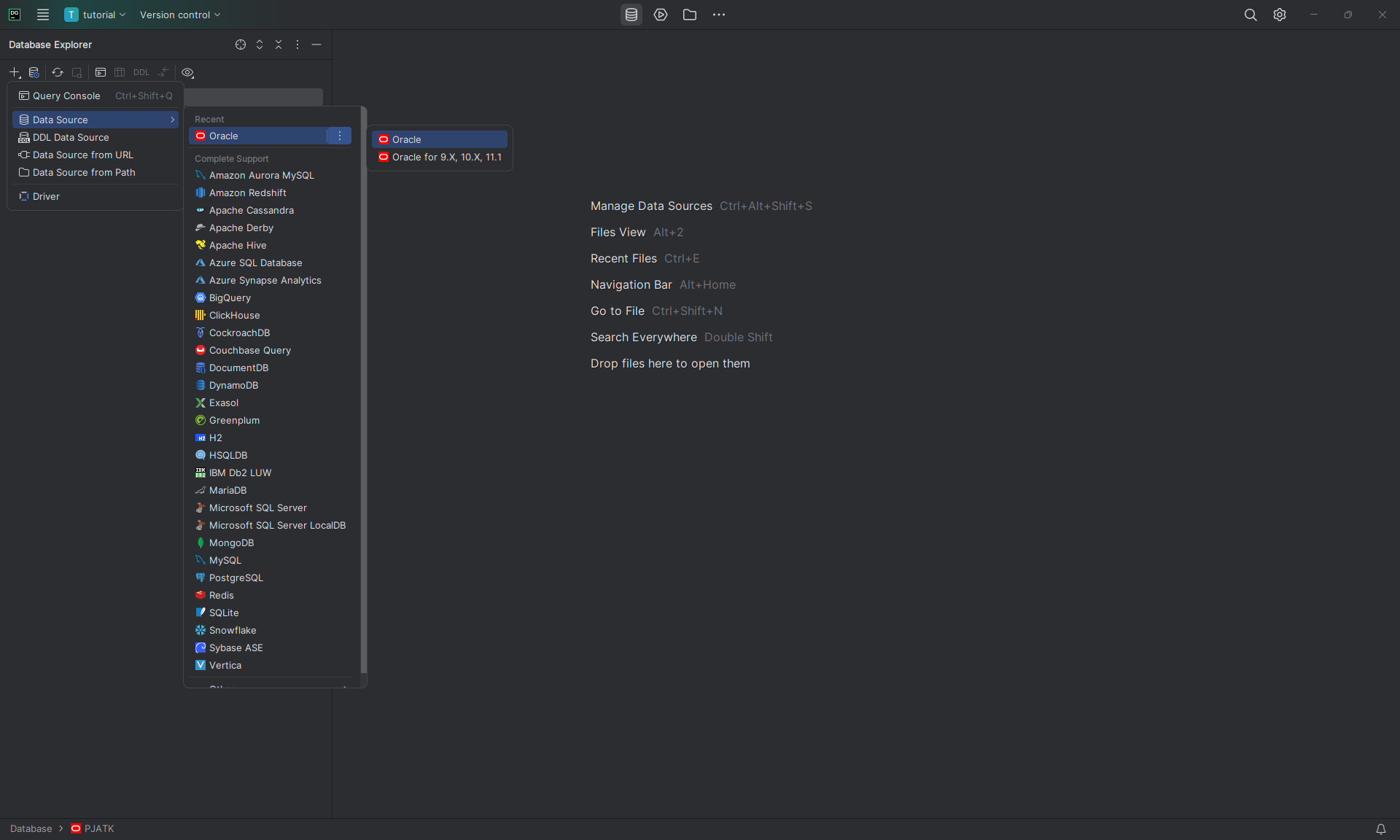
Click the Add Data Source (plus icon) in the top-left corner and select Oracle.
Configure Connection
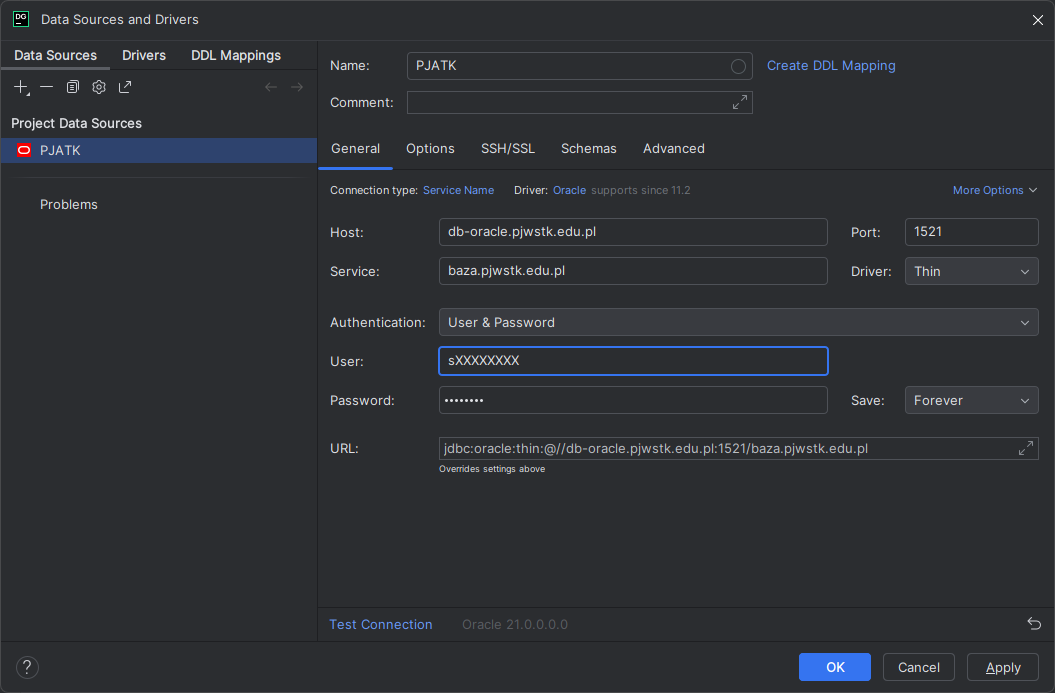
Enter the following connection details:
- Name: e.g., “PJATK Database”
- Host:
db-oracle.pjwstk.edu.pl - Port:
1521 - User: your student ID (e.g.,
s123456) - Password: your password (default:
oracle12)
Important: Service Name
Change Connection type to Service Name and enter:
baza.pjwstk.edu.pl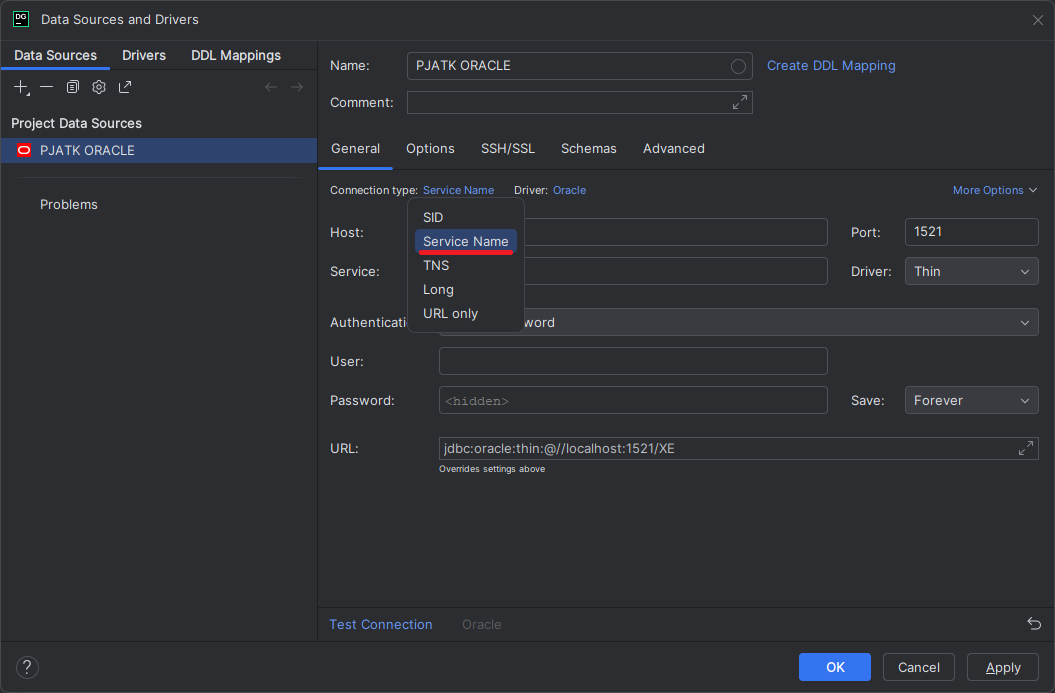
Driver: If prompted, click Download missing driver files.
Test and Save
Click Test Connection. If successful, click OK to save.
Summary
Congratulations! You have successfully connected to the Oracle database. You can now manage and analyze your data using DataGrip.