DataGrip for MSSQL on MacOS
1. Installation
Download and install DataGrip from the official JetBrains website.
License Activation
On first launch, use the License Server (when on campus) or your Educational License (Student Account).
Connection: Ensure you are connected to the VPN or campus network.
2. Kerberos Authentication
To connect to MSSQL on macOS, you must first obtain a Kerberos ticket.
Important Configuration
Due to a driver bug, you must set
useDefaultJaasConfig to true in the Advanced tab of the connection settings later.Using Ticket Viewer
- Open Ticket Viewer (search via Spotlight
Cmd + Space).
- Click Add Identity.
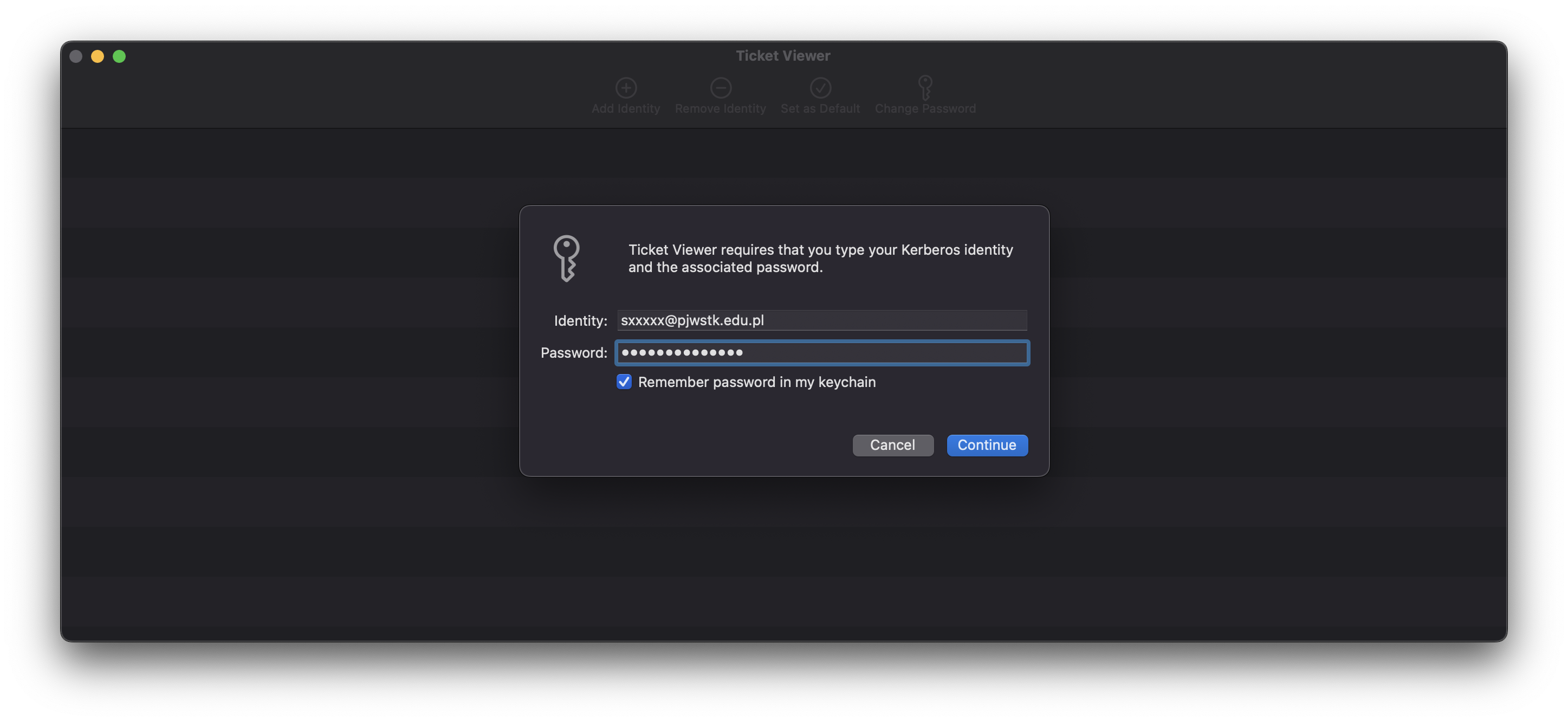
- Enter credentials:
- Identity:
sXXXXXXXX@pjwstk.edu.pl - Password: Your student password
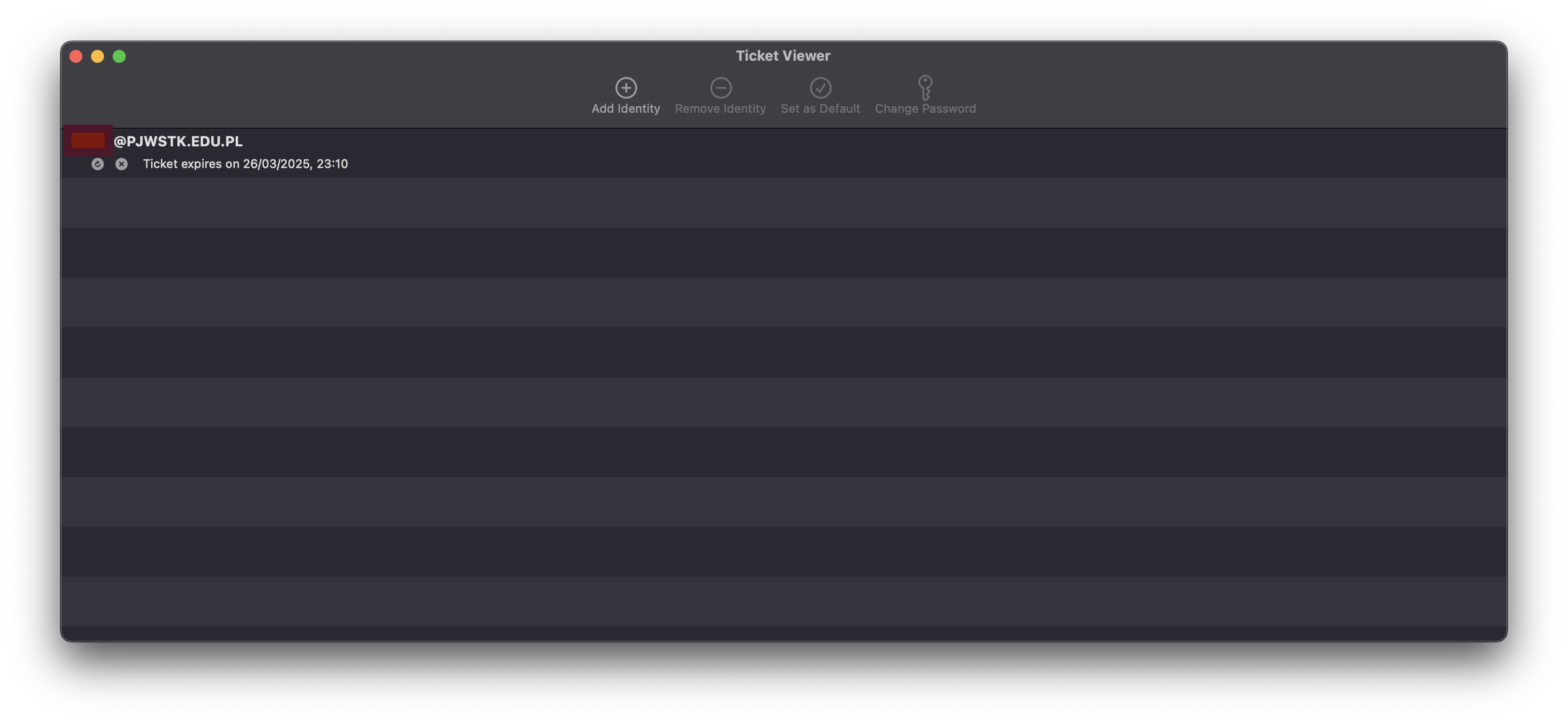
- Verify the ticket is active.
3. Configuration
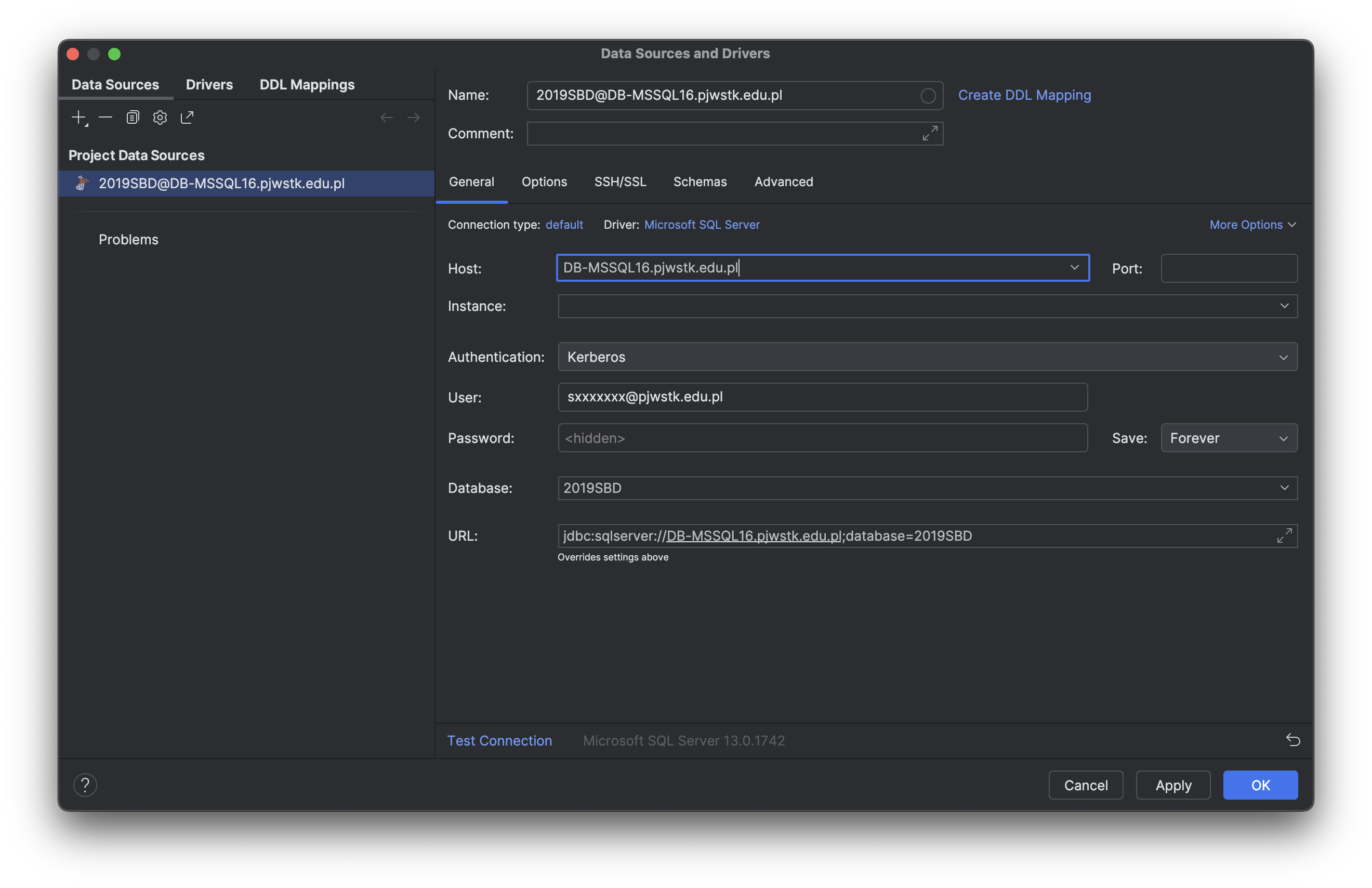
Data Source
- Go to File > Data Sources and Drivers (or
Cmd + ;). - Click + > Microsoft SQL Server.
Connection Details
Fill in the fields:
| Field | Value |
|---|---|
| Host | DB-MSSQL16.pjwstk.edu.pl |
| Port | 1433 |
| Authentication | Kerberos |
| Database | 2019SBD |
| User | sXXXXXXXX@pjwstk.edu.pl |
| Password | Your student password |
Advanced Settings
Go to the Advanced tab and ensure useDefaultJaasConfig is set to true if dealing with Kerberos issues.
Test
Click Test Connection. On success, click OK.
4. Alternative Methods
Alternative: jTDS Driver (Legacy)
If Kerberos fails, try the jTDS driver:
- Select Driver:
Microsoft SQL Server (jTDS). - Auth:
User & Password. - User:
sXXXXXXXX(ID only). - Advanced Tab:
USENTLMV2:trueDOMAIN:PJWSTK
Alternative: Virtualization
Use Omnissa Horizon or a Windows VM (Parallels/UTM) to run SSMS natively.