Shared Disk on Linux

Shared Disk on Linux

Prerequisites

VPN Required To access the Z: drive from home, you must have an active VPN connection.

This guide covers Debian, Ubuntu, and other derivatives.

Configuration

Graphical Method (Easiest)

Install Packages

Open Terminal and run:

sudo apt install gvfs-backends smbclient cifs-utils

Apply Changes

Restart your computer or log out and log back in to ensure plugins are loaded.

Connect via File Manager

  1. Open your File Manager (Nautilus, Dolphin, etc.).

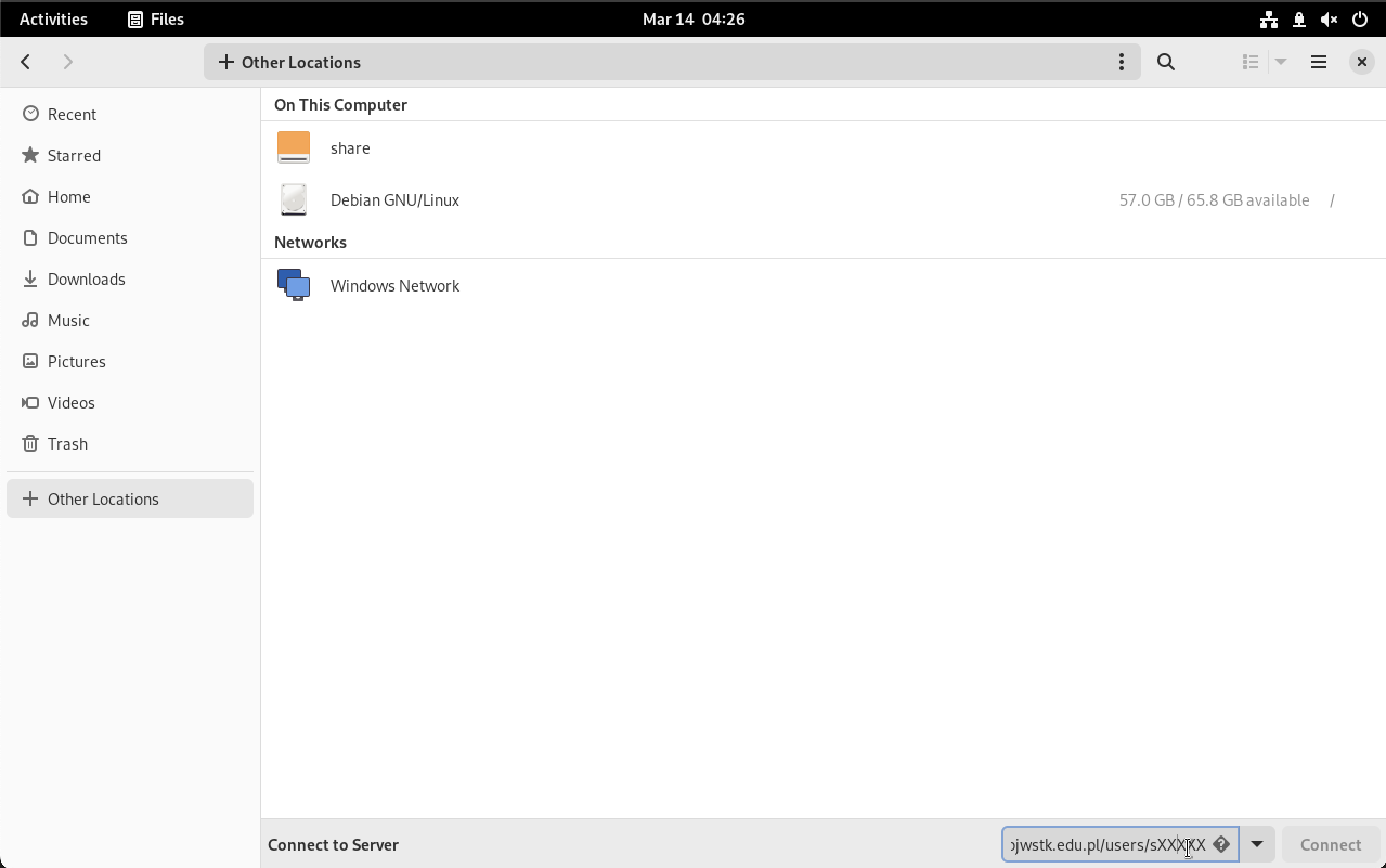
  2. Go to Other Locations.

  3. In the Connect to Server bar (usually at the bottom), enter:

    smb://win-zet.pjwstk.edu.pl/Users/sXXXXX

    (Replace sXXXXX with your student ID)

Server Address

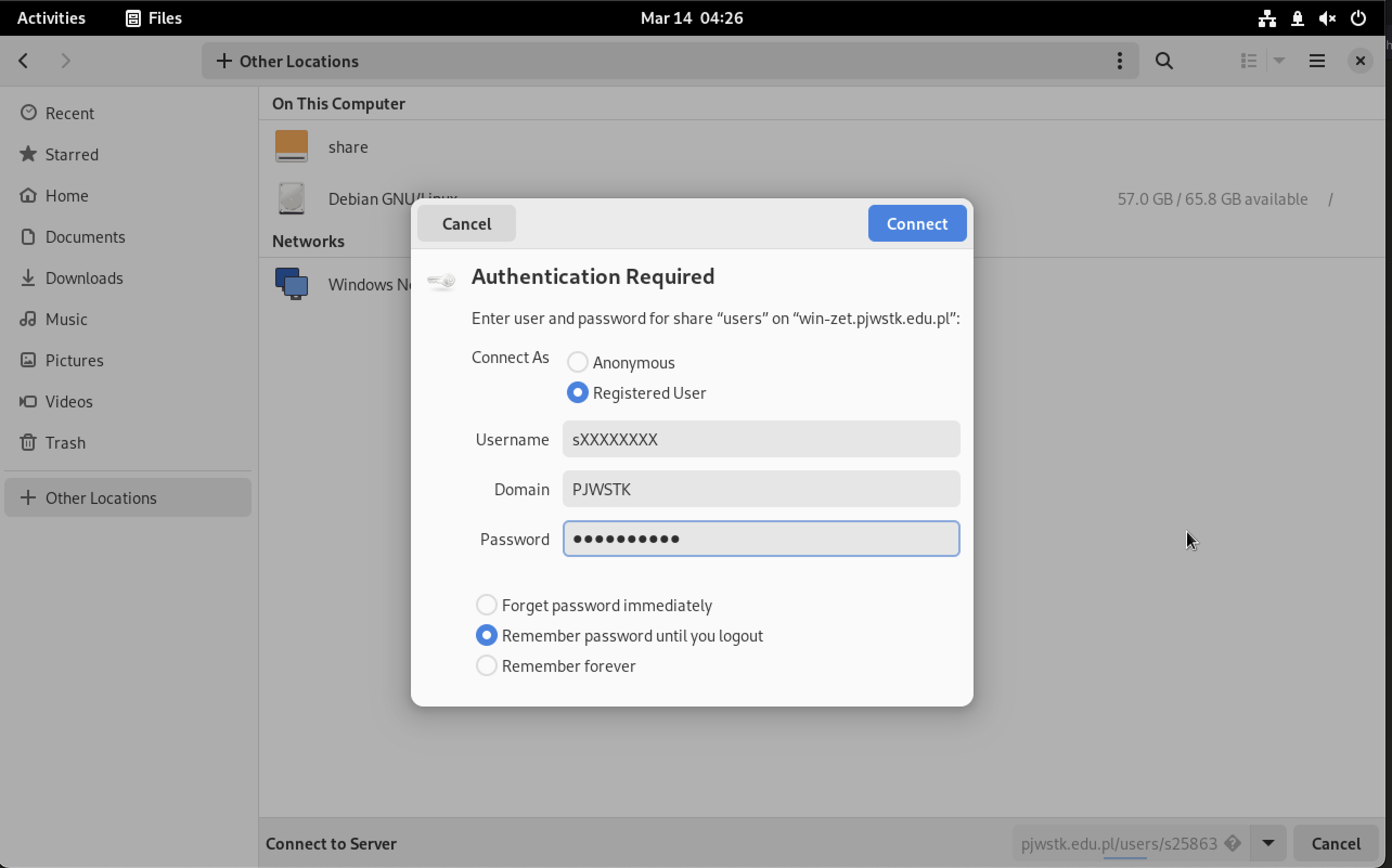
Authenticate

Log in with:

  • Username: sXXXXX
  • Domain: PJWSTK (if asked)
  • Password: Your student password

Login

Terminal (One-time Mount)

Create Directory

Create a folder where the drive will be mounted:

mkdir ~/Z

Mount Drive

Run the mount command (one line):

sudo mount -t cifs -o username=sXXXXX,domain=PJWSTK,uid=$(id -u),gid=$(id -g) //win-zet.pjwstk.edu.pl/Users/sXXXXX ~/Z

(Replace sXXXXX with your ID)

Unmount

When finished, unmount the drive:

sudo umount ~/Z

Terminal (Automatic Mount)

Edit Fstab

Open the filesystem table file:

sudo nano /etc/fstab
Be Careful Incorrect edits to /etc/fstab can prevent your system from booting properly. Verify your syntax carefully.

Add Configuration

Add this line at the end (replace sXXXXX with your ID):

//win-zet.pjwstk.edu.pl/Users/sXXXXX /home/sXXXXX/Z cifs username=sXXXXX,domain=PJWSTK,uid=1000,gid=1000 0 0

(Note: Verify your uid/gid with id command if not 1000)

Verify

Save (Ctrl+O) and exit (Ctrl+X). Then test:

sudo mount -a

If no errors appear, the configuration is correct.

Troubleshooting

Common Issues
  • Access Denied: Verify your VPN is connected (green lock icon).
  • Wrong Password: Ensure your PJATK account is not locked.
  • Protocol Error: Some older distros might need vers=3.0 added to the mount options.